
The digital content landscape has undergone a seismic transformation in 2026, with artificial intelligence democratizing video creation like never before. What once required expensive equipment, professional studios, and extensive technical expertise can now be accomplished from a laptop or smartphone—completely free. This comprehensive guide reveals the most powerful free video generation hacks, cutting-edge AI tools, and professional editing techniques that content creators, marketers, and YouTube entrepreneurs are leveraging to produce studio-quality videos without breaking the bank.
Key Takeaways
- The AI Video Generation Revolution: Why 2026 Changes Everything
- Part 1: Best Free AI Video Generators for 2026
- Qwen AI: High-Quality Videos with Generous Daily Limits
- Part 2: Free Professional Video Editing Software
- Part 3: Essential Free Resources for Professional Videos
- Part 4: Advanced Techniques for Professional Results
- Part 5: YouTube Growth Strategies for 2026
- Thumbnail Design for Maximum CTR
- Part 6: Faceless Channel Strategy
- Conclusion: Your Action Plan for 2026
The AI Video Generation Revolution: Why 2026 Changes Everything

The video creation industry has reached an inflection point. Advanced AI models from tech giants and innovative startups have made high-quality video generation accessible to everyone. Unlike previous years where “free” meant watermarked, low-resolution outputs with severe limitations, 2026’s free tools deliver professional-grade results that rival paid alternatives.
The key differentiators in 2026 include unlimited generation capabilities through clever workarounds, no-watermark exports, HD and 4K quality options, and integration of advanced AI models like Sora 2 and Veo 3.1. These technological leaps mean that a solo creator can now produce the same visual quality as a production team with a six-figure budget.
Part 1: Best Free AI Video Generators for 2026

Grok AI: The Unlimited Video Generation Powerhouse
Grok AI, accessible through X.com (formerly Twitter), has emerged as one of the most powerful free video generators in 2026. What sets Grok apart is not just its realistic output quality, but an ingenious workaround that enables truly unlimited video generation.
The Unlimited Generation Hack: While most users quickly hit generation limits when entering prompts in the main prompt box, savvy creators discovered that using the “Redo” box instead bypasses these restrictions entirely. This simple technique allows you to generate 300, 400, or even unlimited AI videos without hitting any walls.
Creating Long-Form Videos: Grok excels at 5-6 second clips, but creators have developed a workflow for producing longer content. The process involves generating images first in Grok’s image mode, selecting your preferred aspect ratio (16:9 for YouTube, 9:16 for Shorts, or square for Instagram), then animating each image sequentially. This “Copy Frame” trick extends videos seamlessly beyond the 5-second limit.
Step-by-Step Grok Workflow:
- Navigate to grok.com/imagine and sign in with your X account
- Switch from video to image mode
- Enter your detailed prompt describing the scene
- Select aspect ratio appropriate for your platform
- Generate multiple frames for your video sequence
- Switch back to video mode and animate each image
- Use the “Redo” box for additional generations without limits
- Download videos with no watermark
The quality output from Grok rivals commercial video generators, with realistic motion physics, smooth camera movements, and cinematic lighting that makes content stand out on social media platforms.
Meta AI Video Generator: Unlimited Creation with 50+ Preset Styles
Meta’s entry into AI video generation represents a masterclass in accessibility and power. Available completely free through meta.ai or the Meta AI app, this platform offers unlimited generations with zero watermarks—a rarity in the industry.
Key Features That Set Meta AI Apart:
The “Animate” feature transforms any image into a moving scene with a single click. You can use default motion or type custom prompts to control exactly how elements move, making it perfect for creating dynamic social media content.
Meta’s “Custom Animate” provides granular control over motion, allowing you to make characters blink, gesture, or interact with their environment in specific ways. This level of control typically requires professional animation software but is here completely free.
The “Extend Animation” feature creates longer, more consistent videos by seamlessly continuing motion beyond the initial clip. This addresses one of the biggest challenges in AI video generation: maintaining character consistency across extended sequences.
Creative Workflow with Meta AI:
- Open Meta AI on web or mobile app
- Navigate to “Create” mode
- Generate or upload your base image
- Select “Animate” for automatic motion
- Refine with custom prompts for specific movements
- Choose from 50+ preset styles (anime, cyberpunk, cinematic, etc.)
- Use Extend Animation for longer clips
- Export in HD without watermarks
- Optionally add music and lip-sync features
Meta’s unlimited generation capacity makes it ideal for creators producing high-volume content like daily YouTube Shorts or Instagram Reels.
Qwen AI: High-Quality Videos with Generous Daily Limits
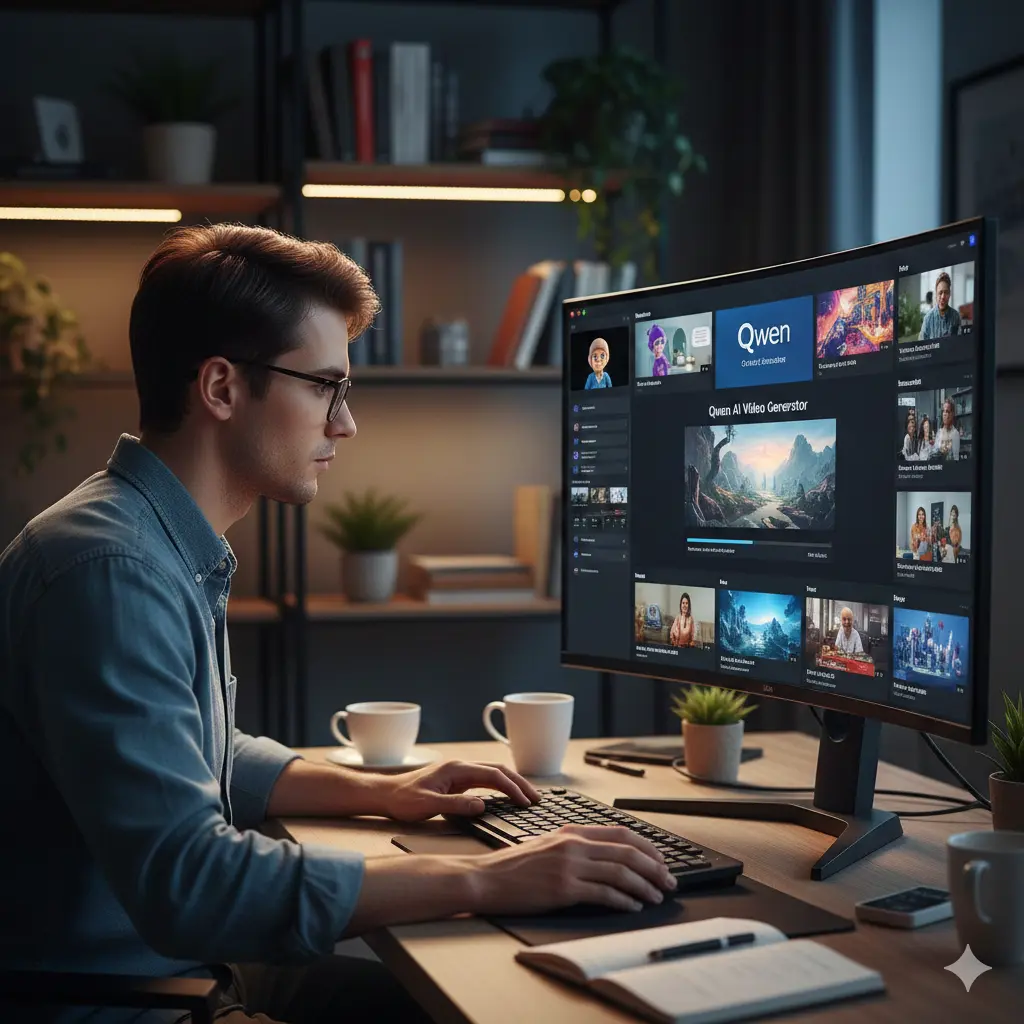
Alibaba’s Qwen AI (accessible at chat.qwen.ai) has carved out a strong position by offering both text-to-video and image-to-video capabilities with impressive quality and reasonable free limits.
What Makes Qwen Stand Out: Users receive 50 free AI images per day and 10 free AI videos per day—more generous than most competitors. The platform supports multiple aspect ratios (1:3, 3:4, 4:3, 16:9, 9:16), making content optimization for different platforms seamless.
The processing time ranges from 10-20 minutes per generation, but the output quality justifies the wait. Qwen excels at understanding complex prompts and producing smooth, stable motion with excellent detail preservation.
Qwen’s Four Specialized Models:
- Text-to-Video Generation: Creates videos from written descriptions
- Image-to-Video Animation: Brings static images to life with motion
- Style Transfer: Multiple visual aesthetics from realistic to anime
- High-Resolution Output: Up to 4K quality on free tier
For creators working on documentary-style content or educational videos requiring specific visual consistency, Qwen’s image-to-video feature provides exceptional stability.
Slop Club: The Community-Driven Unlimited Generator
Slop Club represents a unique approach to AI video generation by combining unlimited free creation with social discovery features.
The Unlimited Advantage: Unlike platforms with daily limits or credit systems, Slop Club offers genuinely unlimited video generation without cost barriers or watermarks. This is accomplished through a Web3 monetization model using SCLUB tokens rather than restricting creators.
Social Features That Accelerate Learning: The remix feature allows you to take any community video, modify the prompt, and create variations—an invaluable learning tool for understanding effective prompting. Thread-based storytelling enables serialized content creation, where you build narrative arcs across multiple connected videos. The TikTok-style discovery feed surfaces trending AI videos, providing endless inspiration and insight into what’s working.
Slop Club excels for creators experimenting with viral content formats, marketers testing ad concepts, and artists exploring surreal visual projects.
Dreamlux AI: Template-Driven Professional Video Creation
Dreamlux AI (dreamlux.ai) positions itself as the go-to solution for creators seeking polished, professional output with minimal effort.
Upon signup, users receive 300 credits—sufficient for extensive testing. The platform’s strength lies in its preset templates that instantly apply professional-grade styling to your generations.
Dreamlux Workflow Advantages:
- One-click video generation from text or images
- No complex editing required
- HD output without watermarks
- Wide range of preset templates for different styles
- Fast processing (typically under 3 minutes)
The text-to-video AI converts scripts into engaging video content instantly, while the image-to-video AI creates dynamic videos while maintaining consistent scenes—critical for brand content and commercial projects.
Hailuo AI (Minimax): The Artist’s Choice for Character Consistency
Hailuo AI, accessible through Monica.im, has become the preferred platform for artists and animators due to its specialized models.
Four Specialized Models:
- Standard Model: Perfect for beginners; simple descriptions yield impressive outcomes
- Live Model (I2V-01-Live): Engineered for creative professionals and illustrators
- Subject Model: Maintains character consistency across generations
- Director Model: Provides cinematic camera controls and complex motion
The Live model represents a game-changer for creators needing to maintain specific visual styles across multiple clips. When creating animated stories or maintaining brand consistency, this feature eliminates hours of post-production work.
Creating Entire Films with Minimax: The platform’s image-to-video feature enables consistent character videos by first generating character images with an AI image generator, then animating them sequentially. This workflow has enabled solo creators to produce entire short films with narrative coherence.
Pika Labs: Professional Keyframe Control with Free Access
Pika Labs has evolved significantly with version 2.2, introducing Pikaframes—a keyframe transition system enabling smooth transitions from 1 to 10 seconds.
Latest Features in Pika 2.2:
- Keyframe transitions up to 10 seconds
- Image-to-video and text-to-video at 1080p resolution
- PikaTwists for dynamic motion effects
- Pikadditions and Pikaswaps for object manipulation
- Enhanced understanding of complex prompts
The free plan includes watermarks but provides substantial generation capacity for testing and non-commercial projects. The 3-second clip limit can be overcome by chaining generations together or upgrading to paid tiers starting at $8/month for watermark removal.
Luma Dream Machine: Cinematic Quality for Filmmakers
Luma Dream Machine has earned its reputation among filmmakers for exceptional cinematic quality and smooth camera motion.
With 30 free generations per month, Luma positions itself as a premium option for creators prioritizing aesthetic quality over volume. The platform excels at keyframing, allowing you to define beginning and end shots for compelling narrative transitions.
Advanced Luma Techniques:
- Prompt-enhanced vs non-enhanced comparison reveals optimal wording
- Natural language prompts for emotional, atmospheric scenes
- Loops for creating seamless background animations
- Camera control presets (tracking, pan, zoom, orbit)
- Integration with 3D Gaussian splats for interactive scenes
Luma’s strength lies in creating the type of polished, cinematic footage that elevates professional projects, making it ideal for music videos, commercial content, and artistic short films.
Part 2: Free Professional Video Editing Software
CapCut: The All-in-One Free Powerhouse
CapCut has solidified its position as the best overall free video editor in 2026, offering capabilities that rival premium software while maintaining a completely free, watermark-free experience.
What Makes CapCut Exceptional:
The platform exports videos up to 4K resolution without watermarks even on the free tier—a feature many competitors reserve for paid plans. This alone makes it invaluable for creators building professional portfolios.
AI-Powered Features That Save Hours:
CapCut’s Text-to-Video integration with Sora 2 and Veo 3.1 models generates complete videos from scripts, including visuals, pacing, and suggested transitions. The auto caption feature transcribes speech and adds customizable subtitles automatically, crucial for accessibility and social media engagement where 85% of videos are watched without sound.
Background removal works without green screens using AI-powered subject detection, while beat sync automatically aligns cuts and transitions to music rhythm—perfect for dynamic social media content.
Professional Editing Capabilities:
- Multi-track timeline editing
- Keyframe animation for complex motion
- Color correction and LUT support
- Speed ramping and time remapping
- Audio ducking and noise reduction
- Stock music and sound effects library
- Transition and effects packages
- Text animations and title templates
Platform Availability: CapCut works seamlessly across desktop (Windows/Mac), mobile (iOS/Android), and web browsers, with cloud sync ensuring your projects are accessible anywhere.
CapCut vs Premium Software: While DaVinci Resolve offers superior color grading and Premiere Pro provides more advanced features, CapCut delivers 90% of what most creators need with zero cost and a significantly gentler learning curve.
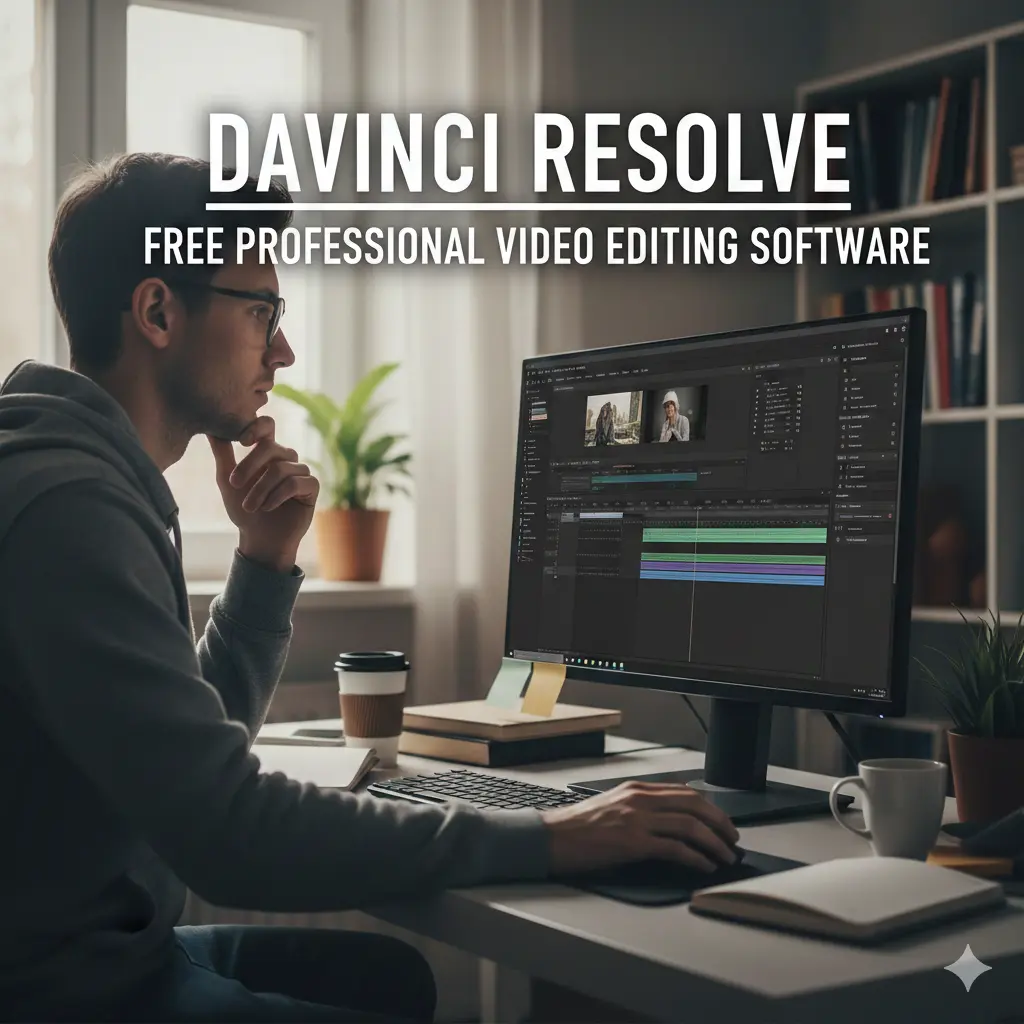
DaVinci Resolve: Hollywood Color Grading for Free
DaVinci Resolve’s free version represents perhaps the most generous offering in professional video editing, providing tools used in major film productions at no cost.
What You Get for Free:
- Industry-leading color grading tools
- Fairlight audio post-production suite
- Fusion VFX compositing
- Multi-camera editing
- AI-powered facial recognition
- Voice isolation for audio cleanup
- 4K editing at 60fps
- Direct YouTube upload with descriptions and chapters
Free Version Limitations: No 10-bit video export, 4K limited to 60fps (vs unlimited in Studio version), and fewer effects compared to the $299 Studio upgrade.
Color Grading Mastery: DaVinci’s Color Page provides unparalleled control with node-based workflows, primary and secondary color correction, power windows for selective adjustments, and professional scopes (waveform, vectorscope, histogram, parade).
Learning Curve Consideration: DaVinci Resolve demands more initial investment in learning compared to CapCut, but rewards users with professional-grade results. Numerous free tutorials on YouTube make the learning process manageable.
Hardware Requirements: DaVinci performs best on systems with dedicated GPU and at least 16GB RAM. For creators with budget computers, CapCut will run more smoothly.
Shotcut: Open-Source Control Without Compromise
Shotcut offers a completely free, open-source solution with no watermarks and full feature access.
Key Advantages:
- Cross-platform (Windows, macOS, Linux)
- No subscriptions or hidden costs
- Multiple tracks for complex edits
- Wide format support
- Professional filters and effects
- Color grading tools
- Detailed audio editing
The interface requires adjustment for users coming from more visual editors, but the trade-off is complete control and long-term flexibility without vendor lock-in.
Platform-Specific Free Options
iMovie (Mac Only): Apple’s built-in editor provides an excellent starting point for Mac users with clean interface, simple tools for cutting, titles, transitions, color correction, and pre-optimized YouTube export presets.
Adobe Premiere Rush: Offers quick editing with auto-editor tools and direct upload to YouTube/TikTok. The free version supports 1080p at 60fps exports; 4K requires the $9.99/month subscription.
Part 3: Essential Free Resources for Professional Videos
Stock Video Libraries Without Watermarks
High-quality B-roll footage elevates any video project. These platforms provide professional footage completely free:
Mixkit (mixkit.co): Truly free with no signup required, no attribution necessary, and HD downloads across categories including business, tech, fashion, travel, and nature.
Pexels: Over 1 million completely free videos with resolution selection options and commercial use rights.
Pixabay: Another million+ video library owned by Canva, offering copyright-free content with straightforward licensing.
Coverr (coverr.co): High-quality clips specifically curated for marketers, with no watermarks or attribution requirements. Downloads include both video file and JPG thumbnail.
Videvo: 3 million+ assets with a mix of fully free content (30-second clips requiring attribution) and watermarked clips with no attribution requirement.
Life of Vids: Sleek interface with SD and HD quality, watermark-free videos requiring no attribution for commercial or non-commercial use.
AI Voiceover Generators for Professional Narration
Voice quality can make or break a video. These free tools deliver professional results:
Crikk (crikk.com): Offers unlimited free text-to-speech with no registration required. The platform provides 300+ standard voices in 70 languages, with the ability to convert 2,500 characters into voiceover at once.
Google AI Studio: Free voiceover generation integrated with other Google AI tools, popular among creators for its natural-sounding speech synthesis.
FineVoice AI (finevoice.fineshare.com): Provides 1,500+ AI voices across 154 languages and accents. Features include voice cloning, custom voice design, and emotion control. The platform exports videos without watermarks in CapCut-compatible format.
Speechify: Free plan available with access to 1,000+ lifelike AI voices in 60+ languages. Features include adjustable pitch, tone, pace, and pronunciation, plus voice cloning from 20-second recordings.
Sound Effects and Music Libraries
Mixkit Sound Effects (mixkit.co/free-sound-effects): Royalty-free sound effects downloadable in WAV and MP3 formats with no signup or attribution required.
ZapSplat: Comprehensive library with tens of thousands of effects plus 200 new additions daily. Most sounds are exclusive to their platform. Free users must provide attribution and receive MP3 downloads.
Free Sounds Library: Powerful search functionality with “Most Wanted” and “Popular” sections showing trending sounds. No attribution required for most effects.
Epidemic Sound: For AIR Media-Tech partners, Epidemic Sound’s 32,000+ tracks and 60,000+ sound effects are completely free with 100% copyright clearance.
Motion Graphics Templates
SonduckFilm: Offers 50,000+ free templates for After Effects and Premiere Pro, including titles, motion graphics, transitions, and animations.
Jitter (jitter.video): Free motion graphics templates that are fully customizable for professional animations.
Uppbeat: Free motion graphics templates including intros, buttons, stickers, titles, icons, transitions, and overlays.
Part 4: Advanced Techniques for Professional Results

Mastering AI Video Prompting
The quality of AI-generated videos depends heavily on prompt engineering. Understanding how to communicate with AI models dramatically improves output.
The Five-Component Prompt Structure:
- Subject Details: Clearly describe the main character or object with specific characteristics (age, clothing, expression, pose)
- Environment/Setting: Define where the action occurs (urban rooftop, foggy forest, underwater city, spaceship deck)
- Style & Medium: Specify the artistic approach (digital painting, Pixar-style 3D, anime, realistic photo, cinematic trailer, film noir)
- Lighting & Mood: Describe illumination and atmosphere (golden hour lighting, harsh shadows, soft studio light, moonlight with fog, neon backlit scene)
- Camera Movement & Format: Indicate how the shot is captured (tracking shot, panning left, static wide angle, close-up, 16:9 cinematic aspect ratio)
Example of Effective Prompt: “A cinematic wide shot of a futuristic sports car speeding through a rainy Tokyo street at night. The neon signs reflect off the wet pavement and the car’s brushed aluminum chassis. Camera tracks the vehicle from the side. Golden hour color temperature at 3200K with volumetric fog. High-energy feel with dynamic motion blur. 16:9 aspect ratio.”
Cinematic Lighting Vocabulary for AI Video
Professional filmmakers use specific lighting terminology that AI models understand well:
Classical Lighting Setups:
- Rembrandt Lighting: Creates triangle highlight on cheek, dramatic and artistic
- Three-Point Lighting: Key, fill, and back lights for dimensional subjects
- Butterfly Lighting: Light directly above and in front, creates butterfly shadow under nose
Atmospheric Lighting:
- Golden Hour: Warm, soft light at 3200K, cinematic sunset glow
- Blue Hour: Cool twilight at 5600K, mysterious atmosphere
- Volumetric Lighting: God rays, visible light beams through atmosphere
Studio Techniques:
- Rim Light: Backlight creating halo separation from background
- Gobo Projection: Patterns like window blinds creating dramatic shadows
- Negative Fill: Removing unwanted light bounce for shadow control
Color Temperature Control:
Specifying Kelvin values gives precise control—2700K for warm tungsten, 3200K for golden hour, 5600K for daylight, 7000K for cool blue tones.
Vox-Style Documentary Editing in CapCut
The distinctive Vox documentary style has become synonymous with quality educational content. Replicating it in CapCut is achievable with specific techniques:
Color Grading: Apply warm temperature adjustment by dragging the temperature slider toward orange, creating the characteristic Vox warmth.
Text Animation System:
- Create primary text layer with gray color
- Duplicate text layer for secondary elements
- Add background to text with rounded corners
- Apply circle mask for bullet points or emphasis
- Use transform keyframes for dynamic movement
Newspaper Highlighting Effect: Create compound clips with blend modes set to multiply, add yellow highlight layers, and animate position for emphasis on key information.
Rapid Scene Changes: Use jump cuts matched to music beats, maintaining pacing that keeps viewers engaged without confusion.
Map Animations: Export still frames from CapCut, edit in external software if needed, reimport and animate with transform keyframes for dynamic map reveals.
Jump Cut Mastery for Fast-Paced Content
Jump cuts have become essential for maintaining viewer attention in the TikTok era:
When to Use Jump Cuts:
- Removing “ums,” “ahs,” and filler words
- Eliminating long pauses or dead air
- Creating time-lapse effects
- Maintaining energy in talking-head videos
- Speeding up tutorials and how-tos
Technical Execution:
- Import video into editor (CapCut, DaVinci, Shotcut)
- Enable audio waveform display
- Identify sections with minimal wave activity (silence/pauses)
- Cut and remove these sections
- Close gaps by dragging subsequent clips left
- Review for jarring transitions
- Add subtle sound effects or music to smooth transitions
AI-Assisted Jump Cutting: VEED’s Magic Cut feature automatically removes silences and filler words, dramatically accelerating the editing process.
Part 5: YouTube Growth Strategies for 2026
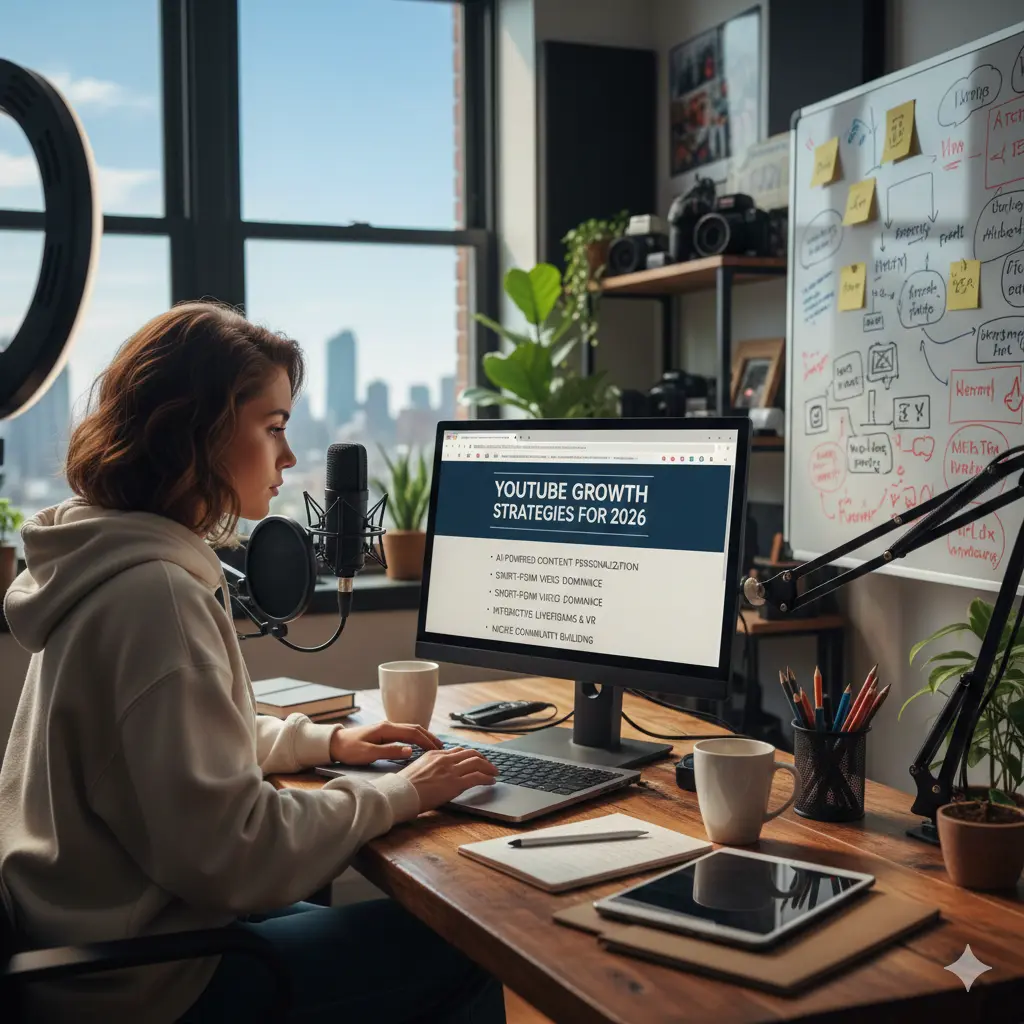
SEO Optimization That Actually Works
YouTube’s algorithm has evolved beyond simple keyword matching to topic relevance and user satisfaction signals.
Title Optimization (100 character limit):
- Primary keyword in first 60 characters
- Create curiosity without clickbait
- Use power words (ultimate, complete, proven, secret)
- Include year (2026) for recency signals
Description Strategy (5,000 character limit):
- Primary keyword in first 125-150 characters (visible before “Show More”)
- 10-20 keywords naturally integrated throughout
- Minimum 250-400 words for better indexing
- Include timestamps for easy navigation
- Add links to related videos, playlists, and your website
- Clear CTA for subscription and engagement
Tag Best Practices (500 character limit):
- 10-15 highly relevant tags total
- Primary keyword as first tag
- Include variations and common misspellings
- Long-tail question phrases people actually search
- Broad category tags last
Advanced Metadata Strategy:
- Channel Keywords: 5-10 core niche phrases (500 char max)
- Playlist Keywords: 2-4 descriptive series terms (60 char max)
- Closed Captions: Manual is preferred; accuracy helps algorithm understand content
Topic Research Over Keyword Research: The algorithm now prioritizes content that satisfies search intent over exact keyword matches. Analyze actual search results to understand what users truly want, not just what keywords they type.
The First 30 Seconds: Hook or Die
YouTube’s algorithm tracks viewer behavior intensely in the opening moments. If viewers bounce early, your video dies early.
Hook Performance Benchmarks:
- Above 70% retention: Solid performance
- Above 80% retention: Exceptional
- Below 50% in first 10-15 seconds: Hook isn’t working
8 Proven Hook Strategies:
- Big Reveal or Result: “This is what happens when you code for 24 hours straight.” (Shows timelapse immediately)
- Compelling Question: “What if everything you know about productivity is backwards?”
- Bold Statement: “Most creators ruin their retention in the first 30 seconds. Here’s how to fix it.”
- Pattern Interrupts: Quick cuts, zooms, sound effects, B-roll, memes to stimulate the brain
- Stakes or Conflict: “I gave myself 24 hours to turn $1 into $1,000. If I fail, I eat a raw egg.”
- Tease the Payoff: “By the end of this video, you’ll know the exact strategy that got me 100K subscribers in 90 days.”
- Start With Action: Jump directly into main content, no preamble
- Use Emotion: Shock, excitement, curiosity, fear—emotions keep viewers engaged
Script Structure for First 30 Seconds:
- 0:00-0:05 → Attention grab (shock, tease, question, or clip)
- 0:05-0:15 → Clarify promise (what this video will deliver)
- 0:15-0:30 → Establish stakes, context, or start journey
Critical Mistake to Avoid: Skip “hey guys” intros, long channel branding, and rambling explanations. Modern viewers decide within 5 seconds whether content is worth their time.
YouTube Shorts Algorithm Mastery
YouTube Shorts operates on fundamentally different principles than long-form content, prioritizing completion rate and immediate engagement over watch time minutes.
Key Ranking Factors for Shorts:
- Engagement: Likes, comments, shares (primary driver)
- Completion Rate: Critical—viewers must watch to the end
- Video Quality: High resolution and clear audio favored
- Relevancy: Trending hashtags, challenges, and hot topics
- User Behavior: Algorithm personalizes based on individual watch patterns
Optimization Strategies:
- Hook viewers in first 1-3 seconds (even faster than long-form)
- Keep videos under 30 seconds for maximum completion rate
- End with clear CTA or teaser for next video
- Use trending sounds from Shorts library
- Post during peak audience activity times
- Include relevant hashtags (3-5 max, avoid spam)
- Create content that encourages multiple views
Daily Upload Strategy: The algorithm treats each Short as a standalone test, pushing it to a small audience before expanding distribution. Consistent daily uploads provide more data points and increase chances of viral hits.
Thumbnail Design for Maximum CTR
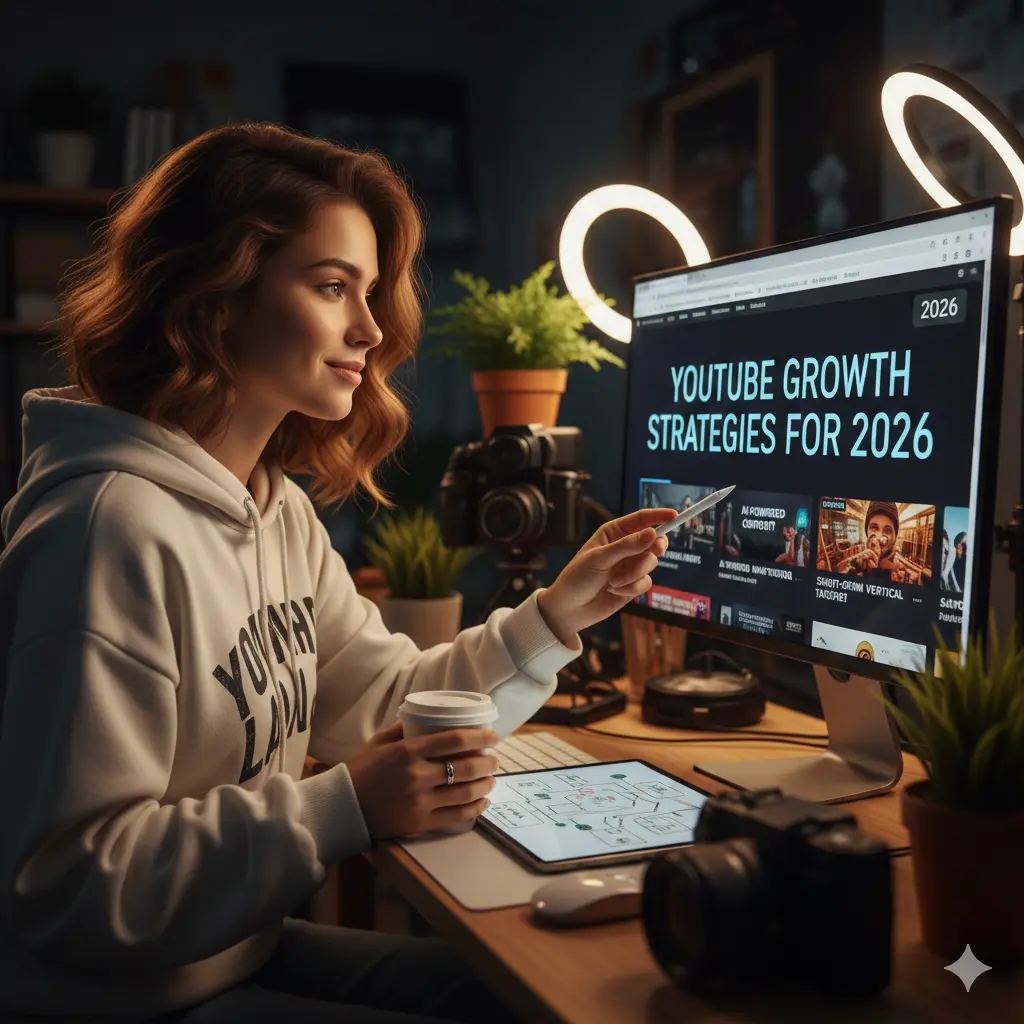
Professional thumbnails can double or triple click-through rates, making them as important as video content itself.
Design Principles That Work:
Faces and Emotion: Thumbnails with expressive faces increase CTR by 20-30% according to VidIQ research. Human brains are wired to notice faces, especially emotional ones.
High-Contrast Colors: Bright colors against dark backgrounds make thumbnails pop in crowded feeds. Use the YouTube dark interface as your design background.
Text Overlays: 4-5 words maximum in large, bold, high-contrast font. Text should be readable on mobile devices where most viewing occurs.
Consistent Branding: Use consistent color schemes, fonts, and styles across your channel to build recognition and trust.
A/B Testing: YouTube Studio allows uploading 2-3 thumbnail variations for automatic testing. The platform determines which version drives best CTR and serves it to more viewers.
Thumbnail Creation Tools:
- Canva: Free templates and design tools
- Photoshop: Professional control (subscription required)
- GIMP: Free Photoshop alternative
- CapCut: Built-in thumbnail designer with templates
Batch Content Production for Consistency
Maintaining consistent upload schedules while balancing life demands requires systematic batch production.
Optimal Batch Size: 4-8 videos per batch works best for most creators. Beginners should start with 2-4 to avoid overwhelm.
Five-Stage Batch Workflow:
Stage 1: Idea Generation & Research (Block 2-3 hours)
- Brainstorm 10-20 video topics
- Use YouTube search autocomplete for trending topics
- Analyze competitor content
- Check Google Trends for seasonality
- Organize ideas in content calendar
Stage 2: Scripting/Outlining (Block 4-6 hours)
- Write hooks precisely for maximum retention
- Use bullet points for main content (allows natural delivery)
- Structure each script with clear beginning, middle, end
- Tools: Ahrefs script generator (free), RyRob for outlines, vidIQ for full packages
Stage 3: Pre-Production (Block 1-2 hours)
- Download stock footage and music
- Organize assets in project folders
- Test equipment and lighting
- Prepare wardrobe changes
- Create prop checklist
Stage 4: Filming Session (Block 3-5 hours)
- Film all videos back-to-back in one session
- Stay hydrated, take 5-minute breaks between videos
- Film each video completely before moving to next
- Start each take with slate (video number, take number)
- Maintain consistent lighting and background
Stage 5: Post-Production (Block 6-10 hours over multiple days)
- Edit videos in sequence for consistency
- Apply same color grade across all videos
- Use templates for intros/outros
- Generate thumbnails for all videos
- Write SEO-optimized titles and descriptions
- Schedule uploads for consistent publishing
Time Management Template:
- Monday: Idea Generation & Research
- Tuesday: Scripting/Outlining
- Saturday: Filming Session
- Sunday-Wednesday: Editing (2 hours per day)
- Thursday: Metadata and Scheduling
Monetization Fast Track
Reaching YouTube Partner Program requirements has become more achievable with strategic content planning.
YPP Requirements (Choose One Path):
- 1,000 subscribers + 4,000 watch hours in past 12 months
- OR 1,000 subscribers + 10 million Shorts views in 90 days
Strategies to Hit Requirements Faster:
For Watch Time Path:
- Create livestreams (viewers stay for full sessions)
- Produce podcast-style long-form content (30-60 minutes)
- Make compilation videos (people binge-watch)
- Organize content into playlists for sequential viewing
- Use end screens to guide to next video
- Focus on evergreen content that accumulates views over time
For Shorts Path:
- Post daily Shorts (volume matters)
- Focus on trending topics and challenges
- Create hooks that demand multiple views
- Use trending sounds from Shorts library
- Cross-promote Shorts on Instagram Reels and TikTok
- Leverage batch production to create 20-30 Shorts at once
Monetization Features Beyond Ads:
- Channel memberships for exclusive perks
- Super Chat and Super Thanks for fan donations
- Merchandise shelf for product sales
- YouTube Premium revenue share
- Affiliate marketing in descriptions
YouTube Studio Analytics Mastery
YouTube Studio’s 2026 updates transform analytics from passive reporting to active strategic guidance.
Ask Studio AI Assistant: This conversational chatbot provides instant analytics insights by answering queries like “Find out how my latest video is performing” or “What questions are people asking in the comments?” It delivers personalized strategic recommendations based on your channel data and audience behavior.
Five Critical Analytics Tabs:
- Overview Tab: Your channel’s vital signs including total views, watch time, subscribers, and estimated revenue. Use date range adjustments to spot trends and isolate high-performing periods.
- Reach Tab: Shows CTR (click-through rate), impressions, and traffic sources. Low CTR with high impressions indicates thumbnail/title problems. Traffic sources reveal where to focus promotion efforts.
- Engagement Tab: Displays retention graphs showing exactly where viewers drop off, average view duration, and total watch time. This is your most valuable data for improving content.
- Audience Tab: Demographics, watch times, return frequency, and what else your viewers watch. Use this to understand your audience and find content gaps.
- Revenue Tab: Monetization metrics including ad revenue, memberships, and Super Chat (available after joining YPP).
Advanced Mode Capabilities:
- Customize which metrics display
- Add comparison periods (month-over-month, year-over-year)
- Filter by content type (Shorts vs long-form)
- Save custom layouts for quick access
- Export data via CSV for deeper analysis
Video-Level Analytics Deep Dive: Click any video in the Content tab to access granular performance data including minute-by-minute retention graph, precise drop-off points, search terms that led viewers to the video, and suggested video performance.
Part 6: Faceless Channel Strategy

Faceless YouTube channels offer privacy, reduced production pressure, and scalable content creation possibilities.
Profitable Faceless Niches:
- Educational tutorials and how-to guides
- Storytelling and narration (true crime, horror stories)
- Gaming commentary and analysis
- Product reviews and unboxings
- Meditation and relaxation videos
- Documentary-style explainers
- Top 10 lists and compilations
- Financial education
- Tech reviews and comparisons
Content Creation Workflow:
Script Development:
Use ChatGPT or Notion AI for structured drafts. Focus on clear, conversational language that sounds natural when spoken.
- Voiceover Production:
- Murf AI: 200+ voices, 35 languages, voice cloning capabilities
- Record with USB microphone (Maono PD400X recommended)
- Use noise reduction in editing (CapCut, DaVinci Resolve)
- Visual Asset Creation:
- Screen recordings (OBS Studio for free, Screen Studio for Mac)
- AI-generated images (Midjourney, DALL-E, Stable Diffusion)
- Stock footage from Pexels, Pixabay, Coverr
- Animations from Animaker, CapCut templates
- Text-based slides from Canva
- Video Assembly:
- Import voiceover as timeline foundation
- Layer visuals matching narration points
- Add text overlays for emphasis
- Include background music at -20dB
- Apply smooth transitions between sections
- SEO Optimization:
- Compelling titles with primary keyword
- Detailed descriptions with timestamps
- Eye-catching thumbnails (even without face)
- Strategic tags and hashtags
Monetization Strategies for Faceless Channels:
- Ad revenue through YPP
- Affiliate marketing (high conversion for product review channels)
- Digital product sales (courses, ebooks)
- Sponsored content (brands love faceless for B-roll)
- Patreon for exclusive content
Conclusion: Your Action Plan for 2026

The convergence of powerful free AI tools, professional editing software at no cost, and accessible resources for every aspect of video production has eliminated traditional barriers to content creation. Success in 2026 depends not on budget but on strategy, consistency, and willingness to master available tools.
Immediate Action Steps:
- This Week: Set up accounts on Grok AI, Meta AI, and Qwen AI. Generate 10 test videos to understand each platform’s strengths.
- This Month: Download CapCut and complete a full tutorial video. Create your first batch of 4 videos using the outlined workflow.
- This Quarter: Establish consistent upload schedule, optimize all metadata for SEO, analyze your retention graphs to improve hooks, and apply for YPP when eligible.
The tools and techniques outlined in this guide represent the cutting edge of free video production in 2026. The playing field has been leveled—what separates successful creators from the crowd is no longer access to expensive tools but rather strategic thinking, consistent execution, and commitment to continuous improvement.
The revolution is here. The tools are free. The only question remaining is: what will you create?
Share this post :
Newsletter
Latest Post

























Add Your Heading Text Here
Lorem ipsum dolor sit amet, consectetur adipiscing elit. Ut elit tellus, luctus nec ullamcorper mattis, pulvinar dapibus leo.